
Start with the shortcuts you already do by mouse a hundred times a day: copy, paste, undo, switch tabs, switch apps, find on page, and save. Learn five at a time, use them on purpose for a week, and let the rest follow.
- The best shortcuts are the boring ones you repeat all day, not the clever ones you use once a month.
- You do not need to memorize a huge list. Five at a time is enough.
- Shortcuts only help if your hands already know the keys, which is where touch typing comes in.
Free Keytopia typing test
Take a typing test and inspect real keyboard control
Go beyond one WPM number with performance timeline, word speed, per-key speed, weak keys, and bigram analysis.
- PaceAverage, raw, peak and low WPM
- ControlAccuracy, errors, consistency and CPM
- TimingReaction, overlap, hold, rhythm and recovery
- PatternsTimeline, heatmap, word, key and bigram speed
No account needed. Save your history after sign-in.
Why a few seconds matter more than they look
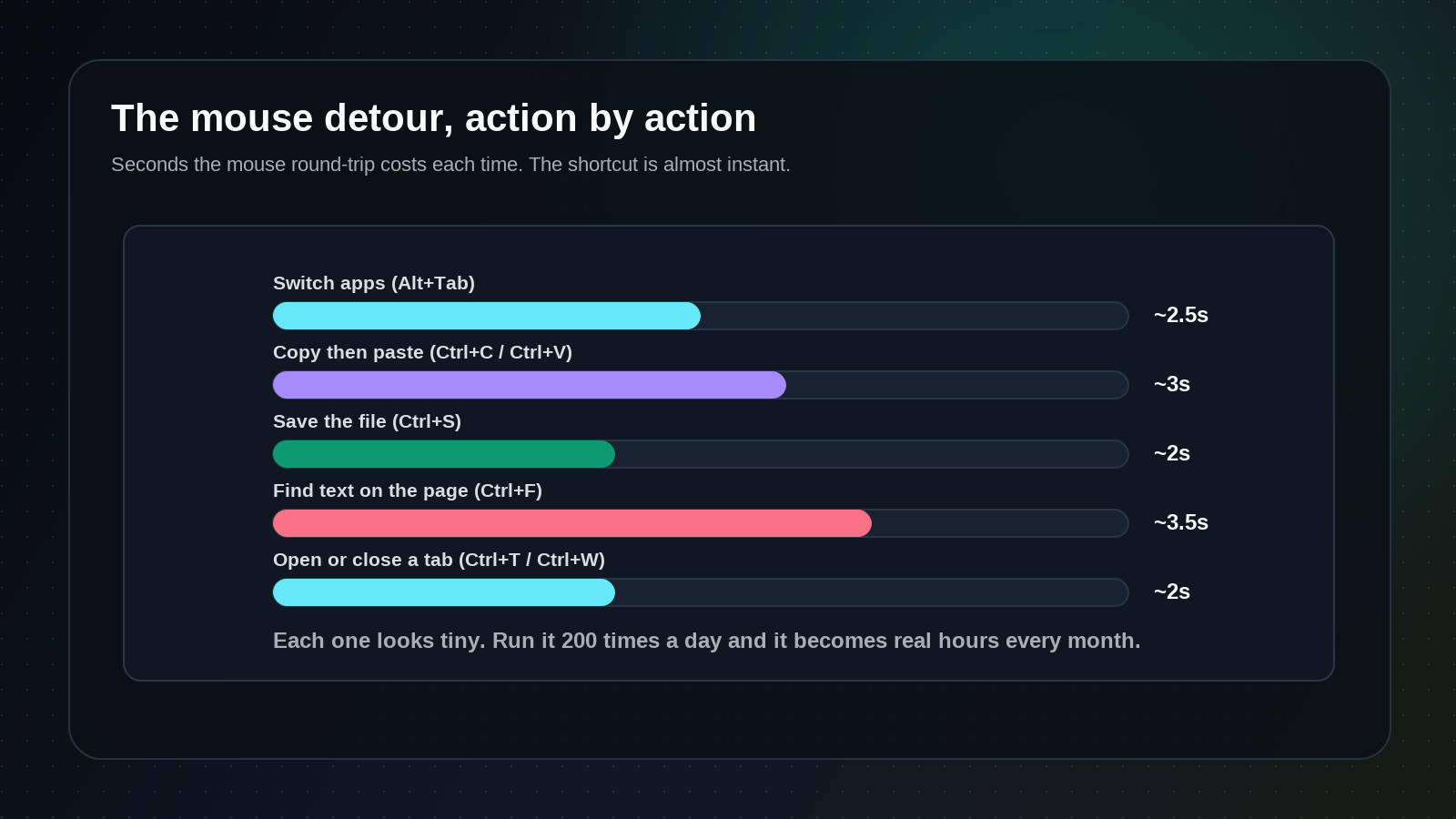
Most shortcuts save you two or three seconds. That sounds like nothing.
But look at how often you do the same small thing. You copy and paste dozens of times an hour. You switch between a browser and a document all day. You scroll back up just to find one word.
Each mouse trip is a tiny detour. Your hand leaves the keys, finds the pointer, aims, clicks, and comes back. The shortcut skips the whole trip.
Add those seconds up across a real working week and the gap stops being small.
The shortcuts worth learning first
You do not need a giant list. Start with the actions you already repeat the most.
Copy, cut, and paste: Ctrl+C, Ctrl+X, Ctrl+V.
Undo and redo: Ctrl+Z and Ctrl+Y in many Windows apps. Some apps use Ctrl+Shift+Z for redo.
Save, often enough to become a reflex: Ctrl+S.
Find on the page: Ctrl+F.
Switch between open apps: Alt+Tab.
Move around browser tabs: Ctrl+Tab to jump, Ctrl+W to close, Ctrl+T for a new one.
On a Mac, many editing shortcuts use Command instead of Control. App switching uses Command+Tab, and redo is commonly Command+Shift+Z. Check the official shortcut guide for your operating system and the app you use.
Five at a time, not fifty
The reason most shortcut lists fail is that people try to learn forty at once. Nothing sticks.
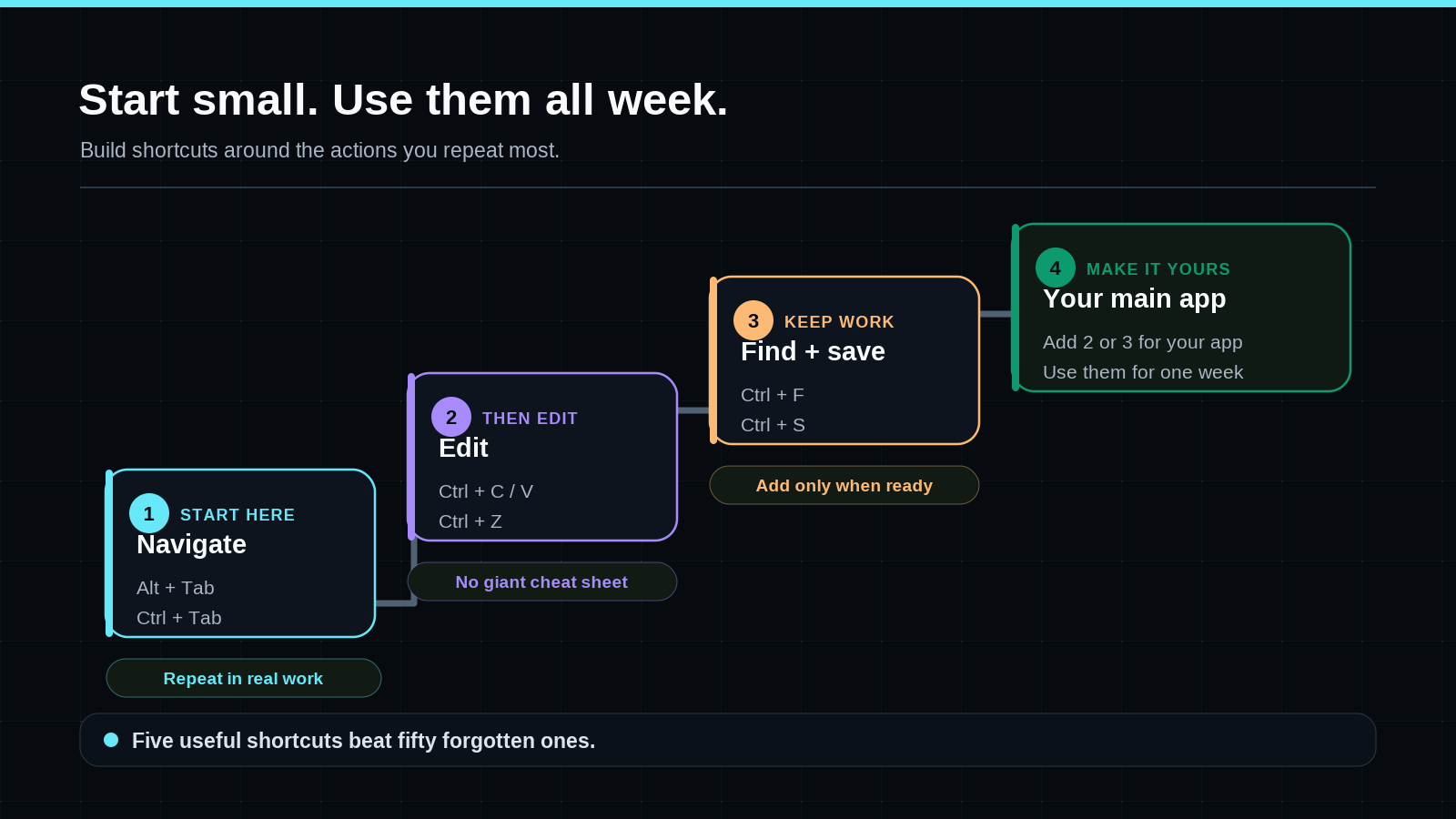
Pick five. Write them on a sticky note. For one week, force yourself to use those five even when the mouse feels faster.
By the end of the week your hands will reach for them without thinking. Then swap in five more.
Slow for a few days, automatic forever. That trade is worth it.
The text shortcuts that quietly save the most
Editing is where the real time goes, and most people still edit one character at a time.
Jump by whole words with Ctrl and the left or right arrow.
Select a word at a time by adding Shift to that.
Jump to the start or end of a line with Home and End.
Select a whole line, then replace it in one move.
None of these feel flashy. They just remove a hundred tiny pauses from your day.
Where touch typing fits in
Here is the part people skip. Shortcuts only feel fast if your hands already know where the keys are.
If you look down to find Ctrl, or hunt for the V, the shortcut is barely saving anything. You traded one detour for another.
That is why shortcuts and touch typing belong together. When your fingers rest on the home keys and move by memory, a shortcut is a flick, not a search.
A few minutes on the Keytopia typing test builds that base. Once the keys are automatic, the shortcuts ride on top of them for free.
FAQs
Which keyboard shortcut should I learn first?
Start with copy, paste, and undo, since you already use them constantly. Once those are automatic, add switch tabs and switch apps.
Do keyboard shortcuts really save much time?
Yes, because the saving is small but constant. A few seconds per action, repeated hundreds of times a day, turns into hours across a month.
How long does it take to make a shortcut a habit?
About a week per small batch if you use them on purpose. Learn five at a time and use them even when the mouse feels faster.
Are Mac and Windows shortcuts different?
Many editing shortcuts replace Control with Command on a Mac, but not all shortcuts map directly. For example, app switching uses Command+Tab on a Mac and Alt+Tab on Windows. Check the shortcut list for the app you use.
Sources
Independent research, official documentation, and source pages behind the claims above.
Key takeaway
Pick five shortcuts you already use by mouse and practise them for a week. Build keyboard familiarity underneath so you need fewer visual searches. The gain comes from repeated use, not a longer list.
Free Keytopia typing test
Take a typing test and inspect real keyboard control
Go beyond one WPM number with performance timeline, word speed, per-key speed, weak keys, and bigram analysis.
No account needed. Save your history after sign-in.
- PaceAverage, raw, peak and low WPM
- ControlAccuracy, errors, consistency and CPM
- TimingReaction, overlap, hold, rhythm and recovery
- PatternsTimeline, heatmap, word, key and bigram speed