
For better typing comfort, keep wrists close to neutral, place the keyboard near elbow height, avoid heavy wrist pressure, keep the mouse close, learn a few editing shortcuts, and clean or adjust your keyboard before blaming your hands.
- Setup can reduce friction before you change keyboards.
- Keyboard tilt and wrist-rest use should support neutral wrists, not force them upward.
- Shortcuts and maintenance can improve daily typing more than another gear purchase.
Free Keytopia typing test
Test your setup before you change it
Run the same test before and after a change. Compare errors, rhythm, reaction time, key overlap, and hold time.
- PaceAverage, raw, peak and low WPM
- ControlAccuracy, errors, consistency and CPM
- TimingReaction, overlap, hold, rhythm and recovery
- PatternsTimeline, heatmap, word, key and bigram speed
No account needed. Save your history after sign-in.
Start with position
Place the keyboard where your shoulders can relax.
Your elbows should not feel lifted or cramped. Your wrists should not bend sharply up, down, or sideways.
If your desk is too high, your shoulders may rise. If the keyboard is too far away, you may reach and tense up.
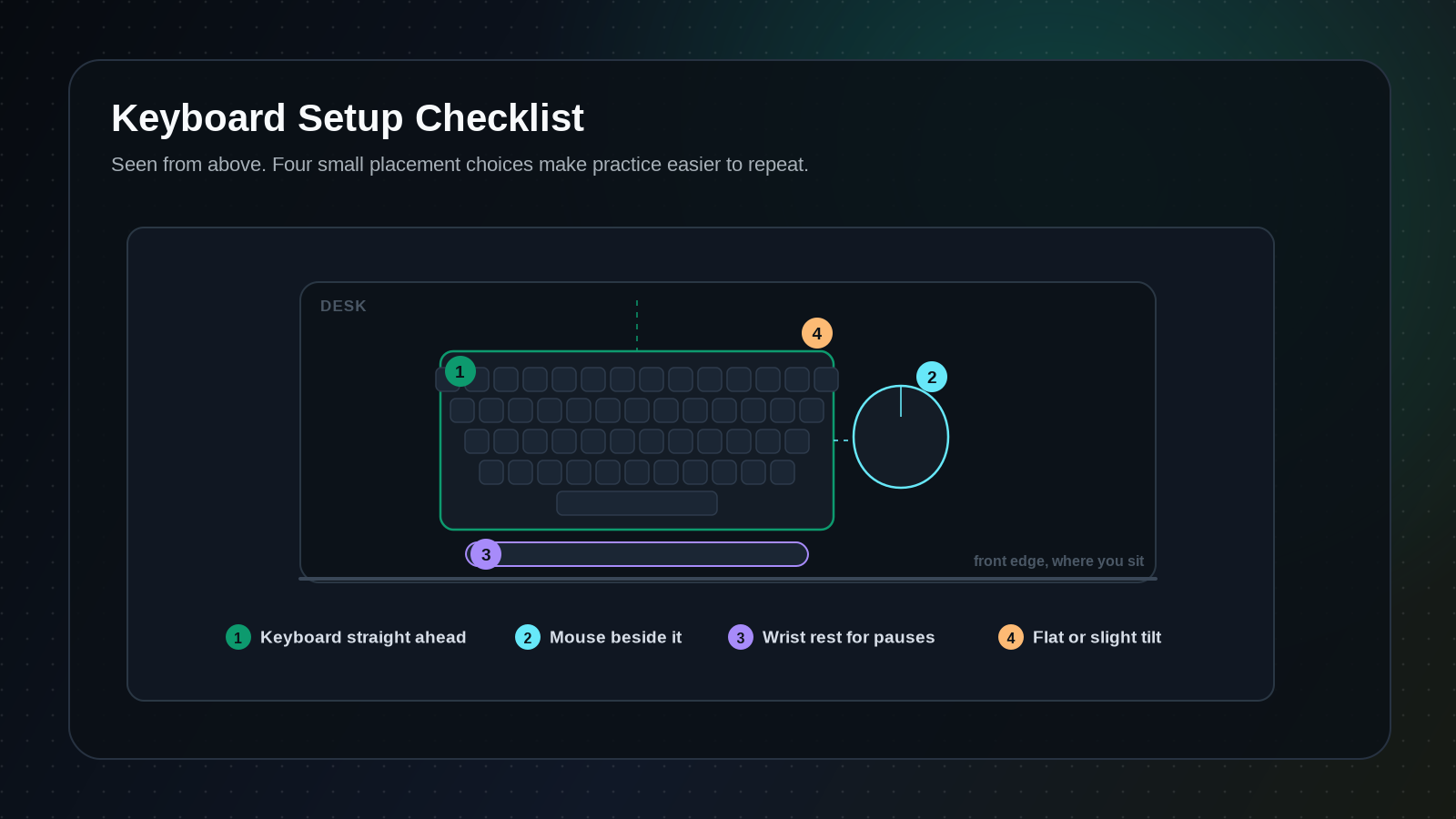
Check keyboard tilt
Keyboard feet are not automatically good or bad.
If raising the back of the keyboard bends your wrists upward, lower it.
If a different tilt helps your forearms and wrists stay neutral, use it.
The goal is not a specific angle. The goal is a calmer hand position.
Use wrist rests during pauses
A wrist or palm rest can be useful during breaks between typing.
It should not become a place where you press weight into your wrists while actively typing.
If a rest traps your hands or makes you stretch, move it, lower it, or stop using it.
Keep the mouse close
A very wide keyboard can push your mouse far away.
That may not affect a short typing test, but it can matter during a full workday.
If you move between typing and mouse use often, a TKL or 75% keyboard may reduce shoulder reach. If you need a numpad, a separate numpad can sometimes sit only where you need it.
Learn editing shortcuts
Typing speed is not only letters.
Learn shortcuts for copy, paste, undo, redo, select word, move by word, jump to line, search, save, and switch tabs.
These shortcuts reduce mouse trips and keep your hands in the writing flow.
Clean and maintain the keyboard
Dust, crumbs, sticky keys, and loose stabilizers can make typing feel worse.
Clean gently. Remove keycaps only if your keyboard supports it and you know how to put them back.
If one key keeps failing, the problem may be hardware, not your technique.
Keyboard setup checklist with targets
The targets below follow the OSHA computer workstation guidance linked under Sources. None of them is a precise angle to measure; each one describes a position you can check by feel.
| Setting | Target | Quick check |
|---|---|---|
| Keyboard height | About elbow height, so forearms are roughly level | Shoulders stay down; elbows are not lifted |
| Keyboard distance | Close enough that elbows stay near the body | No reaching forward to type |
| Wrist angle | Neutral: not bent up, down, or sideways | The back of the hand lines up with the forearm |
| Keyboard feet | Down for most people; up only if it keeps wrists more neutral | Wrists do not bend upward when the feet are up |
| Wrist rest | Pauses only, never pressed into while typing | Hands float during a sentence |
| Mouse position | Right beside the keyboard, same height | The shoulder does not open to reach it |
| Changes per test | 1 | Change one thing, then repeat the same short test |
| Desk reset | 10 minutes | Position, tilt, mouse, chair, then a short test |
Run the 1-minute typing test before and after a change. Compare accuracy and consistency, not just WPM; a setup change often shows up first as fewer errors.
Use Keytopia to test changes
Change one thing at a time: height, tilt, keyboard size, switch feel, wrist rest, or chair position.
Then run a short Keytopia practice session and check accuracy, WPM, comfort, and consistency.
If you change everything at once, you will not know what helped.
Do a ten-minute desk reset before blaming your hands
Sometimes typing feels bad because the setup is bad.
Put the keyboard directly in front of you. Bring it close enough that your elbows can stay near your body. Relax your shoulders. Keep the mouse close so reaching for it does not pull your right shoulder forward all day. Adjust chair or desk height so your wrists are not bent sharply upward.
Then type a short Keytopia test at a normal pace. If the score is similar but the session feels easier, record that result and repeat the comparison on another day.
A single test cannot diagnose an ergonomic problem. Persistent or recurring symptoms need qualified assessment.
Make your practice environment boringly repeatable
If you practice on a laptop one day, a tall desk the next, a different keyboard at night, and a cramped couch on Sunday, your results will jump around.
For a few weeks, keep the environment stable. Same keyboard, same chair, same test length, same warm-up. That gives your body and your data a fair chance.
Once your baseline is stable, change one thing at a time: keyboard height, wrist rest, layout, switch type, or test duration. If the change helps, keep it. If not, go back.
Typing improvement is easier when you are not guessing which part of the setup changed the score.
FAQs
Should keyboard feet be up or down?
Use the position that keeps your wrists closer to neutral. For many people, raising the back of the keyboard bends the wrists upward, which is not ideal.
Are wrist rests good for typing?
They can help during pauses, but avoid pressing weight into your wrists while actively typing.
Can keyboard shortcuts improve typing speed?
They improve workflow speed. You may not type letters faster, but you waste less time reaching for the mouse or repeating actions.
How do I know if my keyboard setup is bad?
Warning signs include wrist bending, shoulder tension, reaching, pain, repeated accidental keys, or feeling tired quickly during normal typing.
Sources
Independent research, official documentation, and source pages behind the claims above.
- OSHA keyboard placement guidancehttps://www.osha.gov/etools/computer-workstations/components/keyboards
- Microsoft keyboard shortcuts in Windowshttps://support.microsoft.com/en-us/windows/keyboard-shortcuts-in-windows-dcc61a57-8ff0-cffe-9796-cb9706c75eec
- CDC NIOSH, office environments and ergonomic designhttps://www.cdc.gov/niosh/office-environment/about/
Key takeaway
Before buying new gear, fix the basics: position, tilt, wrist pressure, mouse reach, shortcuts, and maintenance. A cleaner setup makes practice easier to repeat.
Free Keytopia typing test
Test your setup before you change it
Run the same test before and after a change. Compare errors, rhythm, reaction time, key overlap, and hold time.
No account needed. Save your history after sign-in.
- PaceAverage, raw, peak and low WPM
- ControlAccuracy, errors, consistency and CPM
- TimingReaction, overlap, hold, rhythm and recovery
- PatternsTimeline, heatmap, word, key and bigram speed