
Choose a keyboard that fits your language, key needs, desk, noise limit, access needs, and budget. A keyboard can change feel and position, but no switch or layout guarantees faster typing or prevents pain.
- A keyboard can reduce friction, but it cannot teach the skill for you.
- Comfort, layout, key feel, noise, desk fit, and wrist position matter more than trends.
- Most learners should improve technique before spending heavily on gear.
Free Keytopia typing test
Test your setup before you change it
Run the same test before and after a change. Compare errors, rhythm, reaction time, key overlap, and hold time.
- PaceAverage, raw, peak and low WPM
- ControlAccuracy, errors, consistency and CPM
- TimingReaction, overlap, hold, rhythm and recovery
- PatternsTimeline, heatmap, word, key and bigram speed
No account needed. Save your history after sign-in.
A keyboard helps only if you practice
A nicer keyboard can make typing feel better. It can reduce wobble, improve feedback, or make your desk setup more comfortable.
It will not magically add 30 WPM.
Typing speed still comes from accuracy, repetition, rhythm, and knowing the keyboard without looking down. Gear supports the habit. It does not replace it.
What matters most
Start with comfort.
Your shoulders should feel relaxed. Your wrists should stay close to straight. The keyboard should not force you to reach too far.
Then check stability. A keyboard that slides around or flexes too much can make practice feel worse.
Finally, check familiarity. If the layout is too strange, it may slow learning unless you are ready for a deliberate transition.
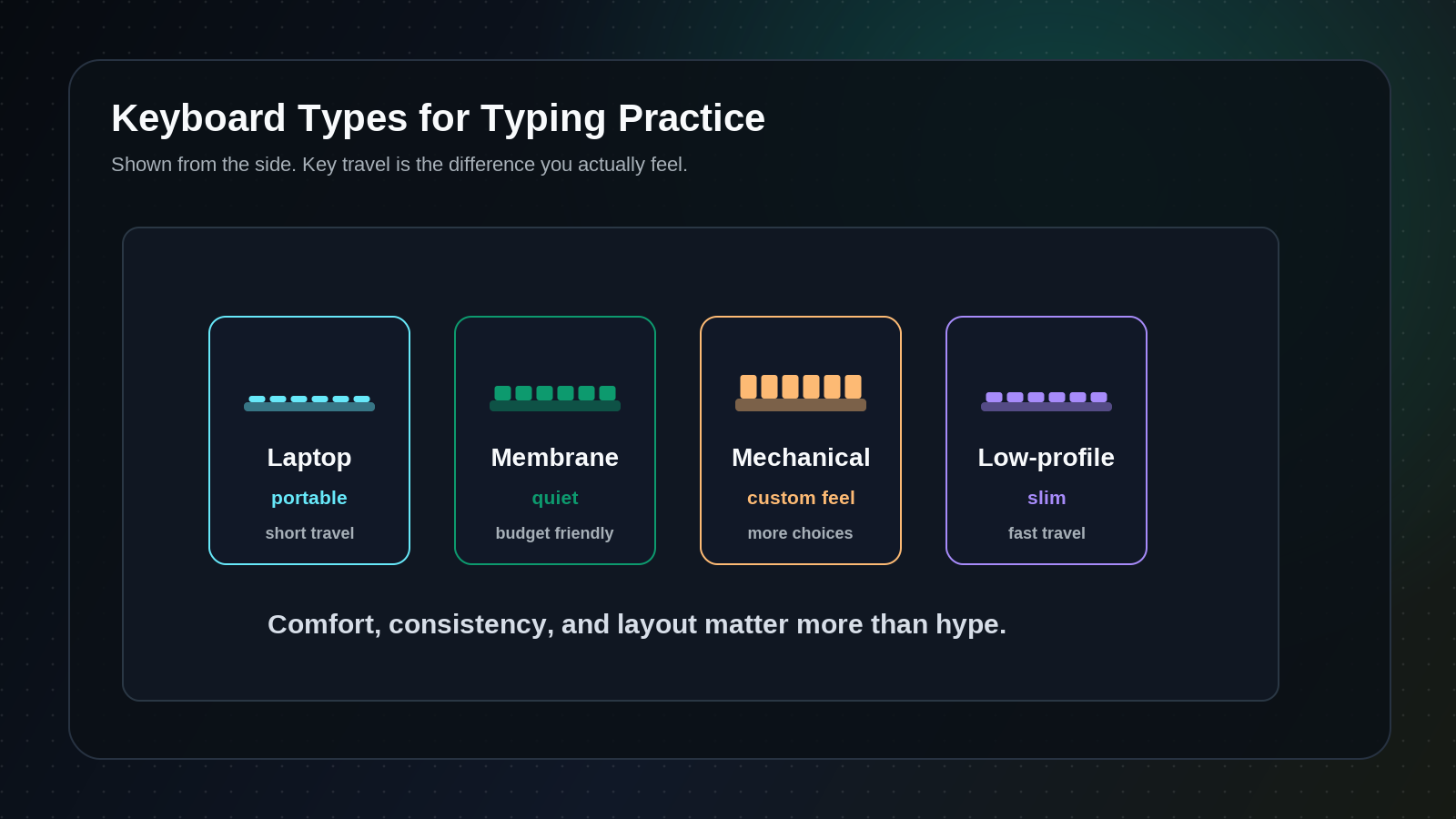
Laptop, membrane, mechanical, and low-profile keyboards
Laptop keyboards are convenient and familiar. The downside is that laptop screen height can pull your neck and shoulders into a poor posture.
Membrane keyboards are affordable and quiet. The downside is that some feel mushy, which can make feedback less clear.
Mechanical keyboards feel more precise to many typists. The downside is cost, noise, and the temptation to keep buying gear instead of practicing.
Low-profile keyboards can feel fast and light. The downside is that shallow travel may feel less forgiving for some hands.
Pros and cons by learner type
Beginner: choose comfort and normal layout first. Avoid extreme compact boards until you know what you need.
Office worker: choose quiet switches, stable keys, and a layout that keeps your mouse close.
Programmer: make sure symbols, arrows, and shortcuts are easy to reach.
Data-entry user: keep a numpad or use a separate numpad.
Student: choose a keyboard that is portable, durable, and not too loud for shared spaces.
Try before you commit
If possible, test a keyboard before buying.
Type a paragraph. Use punctuation. Type numbers. Try your real shortcuts. Notice whether your hands relax or tense up.
A keyboard that feels exciting for two minutes may not feel good after an hour. Daily comfort matters more than first-impression sparkle.
Practice the same way on Keytopia
Whatever keyboard you choose, test it with real practice.
Use Keytopia to compare your accuracy, WPM, consistency, games, races, code practice, and longer text sessions. If a keyboard makes your hands feel calmer and your accuracy cleaner, that matters.
The best keyboard is the one that helps you return to practice without fighting your setup.
The best practice keyboard is the one you will use consistently
A keyboard can help, but it cannot practice for you.
For practice, a stable layout, comfortable key spacing, reliable keys, and a suitable noise level matter more than brand prestige or sound.
If you switch keyboards constantly, your hands keep recalibrating. That can be fun for a hobby, but it is not always helpful for learning.
Use one main keyboard for practice for a few weeks. Once your baseline is stable, then experiment. That way you can tell whether a new board actually helps or just feels exciting because it is new.
A practical buying checklist
Before buying a keyboard for typing practice, check five things.
First, layout: do you need arrows, function keys, or a numpad? Second, comfort: can your shoulders stay relaxed with the keyboard centered? Third, key feel: can you type lightly without bottoming out hard? Fourth, noise: will clicky switches annoy your room, class, office, or calls? Fifth, reliability: do keys register cleanly without chatter or missed presses?
If those are right, the keyboard is suitable for a practice trial.
Do not assume a more expensive keyboard will improve skill. Compare the same Keytopia text and duration on the current and new keyboard after the novelty has faded.
FAQs
Will a mechanical keyboard make me type faster?
There is no guaranteed speed gain. Test the same text and duration before and after the change. A new keyboard can change feel without changing skill.
Is a laptop keyboard bad for typing practice?
Not always. Laptop keyboards are fine for many learners. The bigger issue is often posture, because the screen and keyboard are connected.
Should beginners buy an expensive keyboard?
Usually no. Beginners should first build accuracy and comfort. Upgrade only when you know what your current keyboard is failing to do.
What keyboard is best for long typing sessions?
A comfortable, stable, quiet-enough keyboard with a layout that fits your work. For some people that is low-profile. For others it is mechanical, split, or a normal full-size board.
Sources
Independent research, official documentation, and source pages behind the claims above.
Related Keytopia resources
Product pages and related guides from Keytopia. These are not independent evidence.
Key takeaway
Buy for comfort, fit, noise, and daily use. Do not buy a keyboard because you expect it to replace practice. The real win is a setup that makes good practice easier to repeat.
Free Keytopia typing test
Test your setup before you change it
Run the same test before and after a change. Compare errors, rhythm, reaction time, key overlap, and hold time.
No account needed. Save your history after sign-in.
- PaceAverage, raw, peak and low WPM
- ControlAccuracy, errors, consistency and CPM
- TimingReaction, overlap, hold, rhythm and recovery
- PatternsTimeline, heatmap, word, key and bigram speed