Touch typing practice may help some learners with dyslexia reduce the need to search visually for keys, but results vary. Use short lessons, explicit key instruction, readable text, optional audio, and low-pressure feedback. Follow the learner’s education or access plan and involve a qualified professional when needed.
- Dyslexia is not the same for every learner.
- Typing practice is a skill lesson, not treatment for dyslexia.
- Flexible text, pace, feedback, and input choices improve access.
Free Keytopia typing test
Take the same baseline you would give a learner
See the learner result first-hand, including WPM, accuracy, consistency, weak keys, rhythm, and error recovery.
- PaceAverage, raw, peak and low WPM
- ControlAccuracy, errors, consistency and CPM
- TimingReaction, overlap, hold, rhythm and recovery
- PatternsTimeline, heatmap, word, key and bigram speed
No account needed. Save your history after sign-in.
Set a careful goal
The goal might be finding keys more easily, keeping the eyes on written work, or typing an assignment with less interruption.
Touch typing is not a cure or treatment for dyslexia. It is one keyboard skill that may support some learners. Research and individual outcomes should not be turned into a promise.
Agree on a practical goal with the learner. Use school or professional guidance when it applies.
Make each instruction explicit
Teach one small key group at a time. Name the key, finger, movement, and return position.
Show the instruction and say it aloud when audio helps. Let the learner repeat it in their own words. Use the new keys in real words as soon as possible.
Avoid a screen full of competing directions. One clear task reduces the amount of information the learner must hold at once.
Adjust how the text is presented
Offer a comfortable font size, line spacing, contrast, and line length. Let the learner choose between a few readable options.
Highlighting the current word or line may help some people and distract others. Animation can have the same effect. Make these features optional.
Use familiar language first. Add dense or unfamiliar passages only when they match a real learning goal.
Use short practice and calm feedback
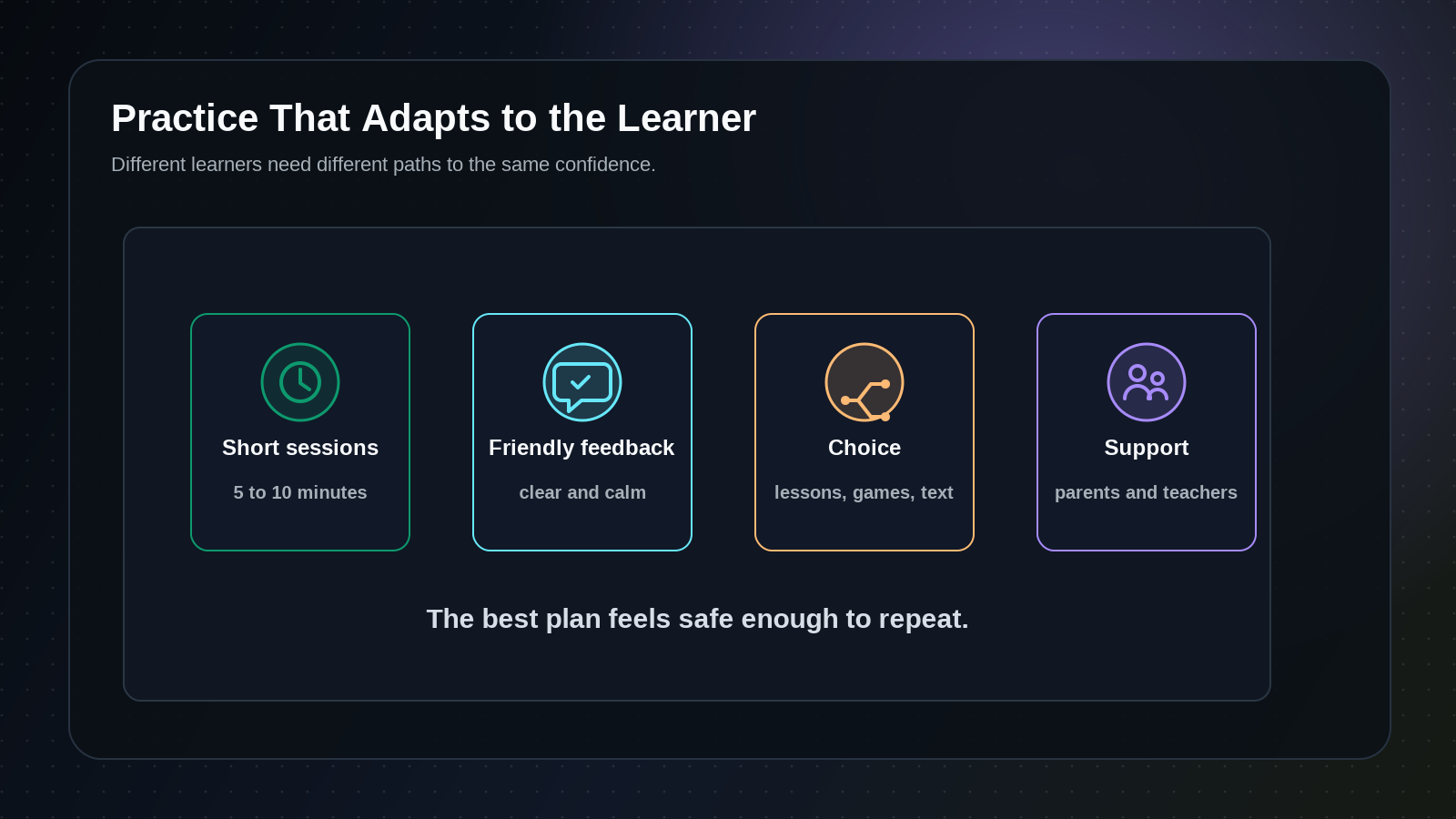
Begin with a few minutes. Stop when attention, comfort, or movement quality falls.
Give feedback on one thing at a time. It may be a key pattern, a steady pace, or fewer looks at the keyboard.
Do not make a public WPM rank the main reward. Personal progress and task independence are more meaningful.
Allow different methods and tools
A standard finger map may not be the right choice for every learner.
Some people benefit from key labels, a keyboard cover used later in training, speech support, word prediction, or an alternate keyboard. Others may combine typing and dictation.
The best setup is the one that supports the learner's work safely and fits their approved accommodations.
Review progress with the learner
Ask what feels easier and what still creates friction.
Use a short repeated task to check key finding, accuracy, comfort, and independence. Keep the test conditions similar. Do not infer a broad educational result from one WPM score.
If the learner experiences pain, significant distress, or a sharp change in ability, pause and seek appropriate professional advice.
Create a learner choice profile before the first drill
Ask the learner which presentation choices make the task easier to follow. Do not assume that one dyslexia setting works for everyone.
Test one choice at a time:
- Text size: regular or larger
- Line width: short or medium
- Prompt: written, spoken, or both
- Highlighting: current letter, current word, or none
- Motion: normal or reduced
- Sound: on or off
- Session length: three, five, or eight minutes
- Keyboard guide: visible, hidden, or shown only when requested
Record the choices that the learner prefers. Keep them stable for several sessions. Too many changes can make it hard to tell what helped.
The profile is not a diagnosis. It is a practical record of access preferences. Follow the learner's education plan or professional guidance when one exists. If the learner uses text-to-speech, speech input, a different keyboard, or another approved tool, include it in the plan instead of forcing a standard setup.
Try one low-load lesson
Use a short lesson with one clear goal. The goal could be finding A, S, D, and F without looking down.
An eight-minute lesson can look like this:
- Show the four keys and say their names.
- Let the learner find each key without a timer.
- Type five short combinations at a calm pace.
- Type three familiar words that use the keys.
- Take one short practice run.
- Ask which part felt easy and which part felt confusing.
Do not add new keys because the timer has ended. Repeat the same group in the next lesson when the movement still feels uncertain.
Use literal feedback. Say, "The S key caused three pauses" instead of, "You need to focus more." Name one useful next action. For example, practise S inside short words for two minutes.
Clear instructions and small text blocks support cognitive accessibility. They also make the lesson easier to review with a teacher, parent, or support professional.
Read the result without punishing an access choice
A typing result can show what happened during the task. It cannot explain dyslexia or decide which support a learner needs.
Use the result as a set of questions:
- Good accuracy with slow WPM: is the learner still searching for keys, or choosing a careful pace?
- Good raw speed with many errors: is the text too dense, the prompt unclear, or the pace too high?
- Low consistency with one weak key group: would a smaller key lesson reduce the load?
- Long reaction time at the start: did the learner need more time to read the prompt?
- Stable results with the chosen display: should the same setup remain in place?
For example, a learner may score 24 WPM with 97 percent accuracy and steady consistency. A higher-speed goal may not be the next need. The next goal could be typing a school paragraph with fewer visual searches for keys.
Compare the learner with their own earlier result under the same setup. Do not use an adult leaderboard or a public class rank as the main measure.
FAQs
Can touch typing help someone with dyslexia?
It may help some learners find keys with less visual searching. The benefit varies and should be judged through the learner’s real tasks.
Is a special font required?
No single font works for everyone. Offer readable choices for size, spacing, and contrast, then let the learner choose.
Should a learner with dyslexia use dictation instead?
Typing and dictation can support different tasks. The learner may use either or both based on access needs, environment, and approved accommodations.
Can a Keytopia typing result diagnose dyslexia?
No. It can show typing pace, errors, consistency, and key patterns during one task. Dyslexia assessment and education planning require qualified professionals and the proper school or health process.
Sources
Independent research, official documentation, and source pages behind the claims above.
- Reading and Writing Quarterly, keyboarding and dyslexia studyhttps://www.tandfonline.com/doi/full/10.1080/10573569.2024.2304758
- International Dyslexia Association, typing lesson and game reviewhttps://dyslexiaida.org/dr-cheesmans-app-chat-typing-lessons-and-games-for-kids-and-adults/
- W3C Web Accessibility Initiative, cognitive accessibility guidancehttps://www.w3.org/WAI/cognitive/
- NICHD, learning disability supports and technologyhttps://www.nichd.nih.gov/health/topics/learning/conditioninfo/treatment
- W3C, clear and understandable content guidancehttps://www.w3.org/WAI/WCAG2/supplemental/objectives/o3-clear-content/
Key takeaway
Use explicit steps and flexible presentation. Treat typing as one support skill, not as a promise about dyslexia.
Free Keytopia typing test
Take the same baseline you would give a learner
See the learner result first-hand, including WPM, accuracy, consistency, weak keys, rhythm, and error recovery.
No account needed. Save your history after sign-in.
- PaceAverage, raw, peak and low WPM
- ControlAccuracy, errors, consistency and CPM
- TimingReaction, overlap, hold, rhythm and recovery
- PatternsTimeline, heatmap, word, key and bigram speed